PictureThis App Tutorial
This guide explains how to use each tab in the PictureThis app.
Available Tabs
Vision Studio
- Purpose: Versatile image generation
- Best for: Complex scenes and detailed prompts
Example Prompt:
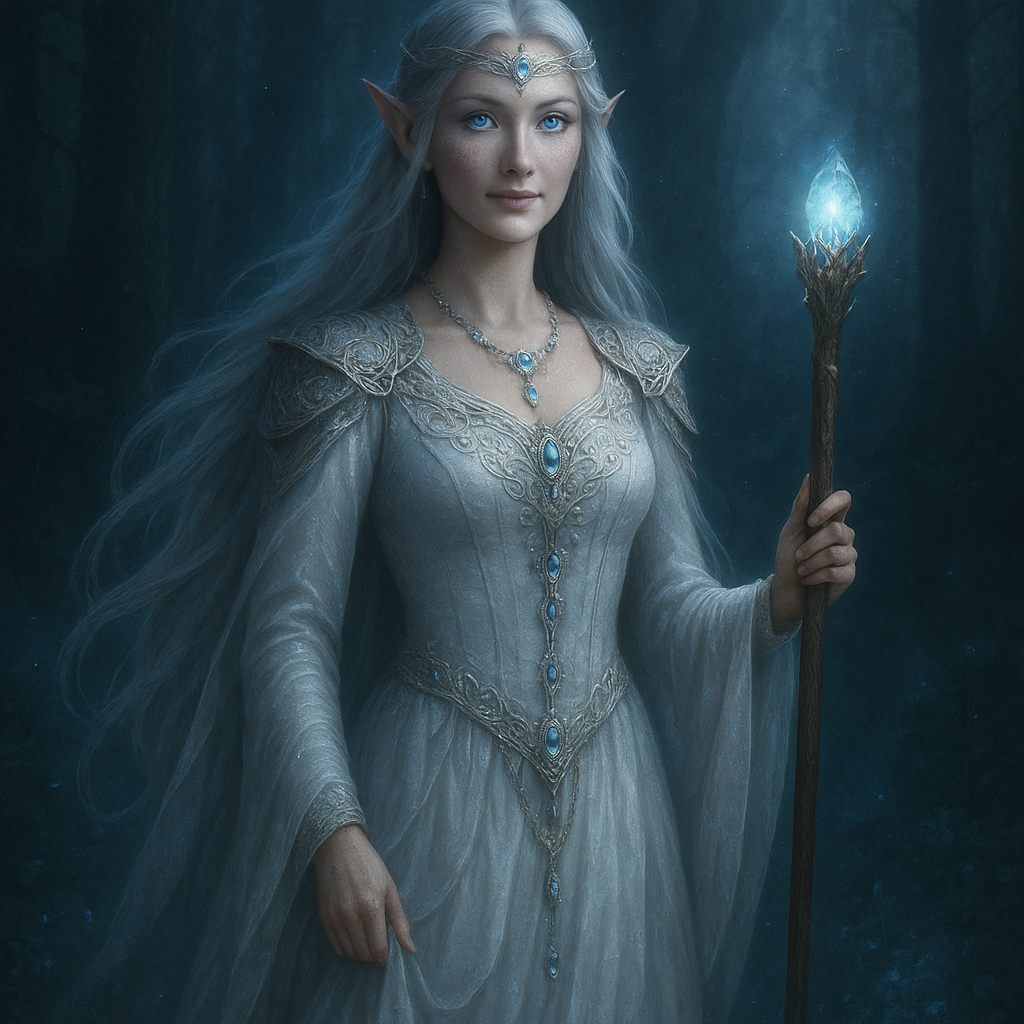
An elven queen with long silver hair and glowing blue eyes, wearing a magnificent white gown adorned with jewels. She stands in an ancient, mystical forest surrounded by luminous plants and mist. Moonlight filtering through the canopy, creating magical light and shadows. Fantasy art, epic, intricate details, masterpiece, digital painting.
Example Output:
Pixel Forge
- Purpose: Artistic image creation
- Best for: Creative and artistic projects
Example Prompt:
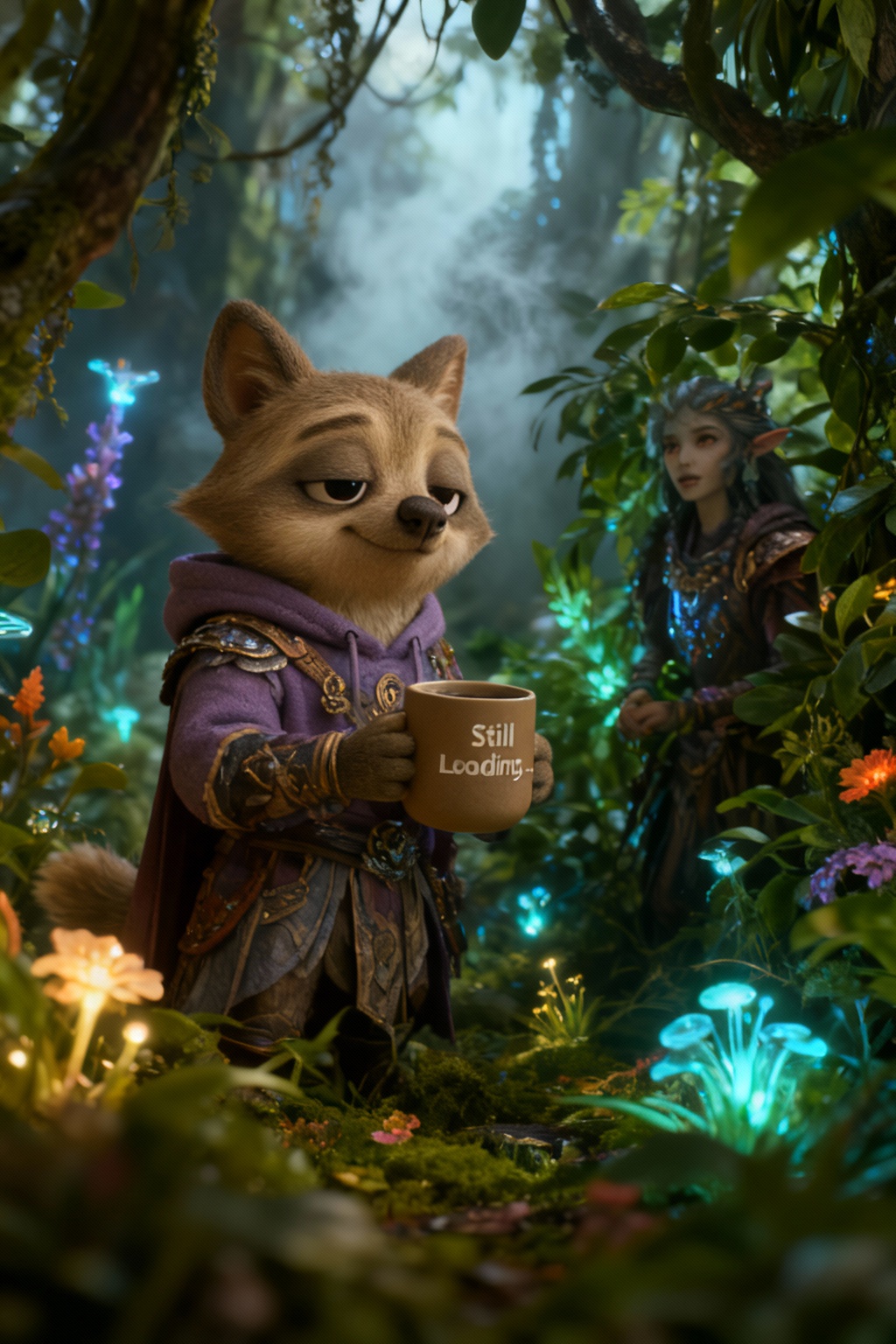
A fantasy character standing in a lush, mystical forest, looking towards another character emerging from the dense foliage, both characters in detailed, unique outfits, with intricate accessories and distinct features.
Example Output:
Dream Weaver
- Purpose: Professional image generation
- Best for: High-quality, reliable results
Example Prompt:
A cozy, expressive anthropomorphic character that's a hybrid between a fox and a sloth. He has warm grey-beige fur with off-white accents on his chest and face, small soft fox-like ears, and a short fluffy tail. His eyes are calm and half-lidded, with a witty, slightly sleepy expression. He wears a comfy oversized lavender hoodie and soft house slippers, holding a steaming mug that says "Still Loading…". The background is softly lit with warm neutral tones, like a cozy living room or minimalist home office. The lighting is cinematic yet natural, with shallow depth of field, giving a warm, calm, slightly humorous vibe. Stylized realism, Pixar-meets-illustration aesthetic, soft textures, detailed fur, expressive face, 3D character render style.
Example Output:

Vision Video
- Purpose: Video generation from reference images
- Best for: Creating dynamic video transformations
Example: Dragon Transformation Video
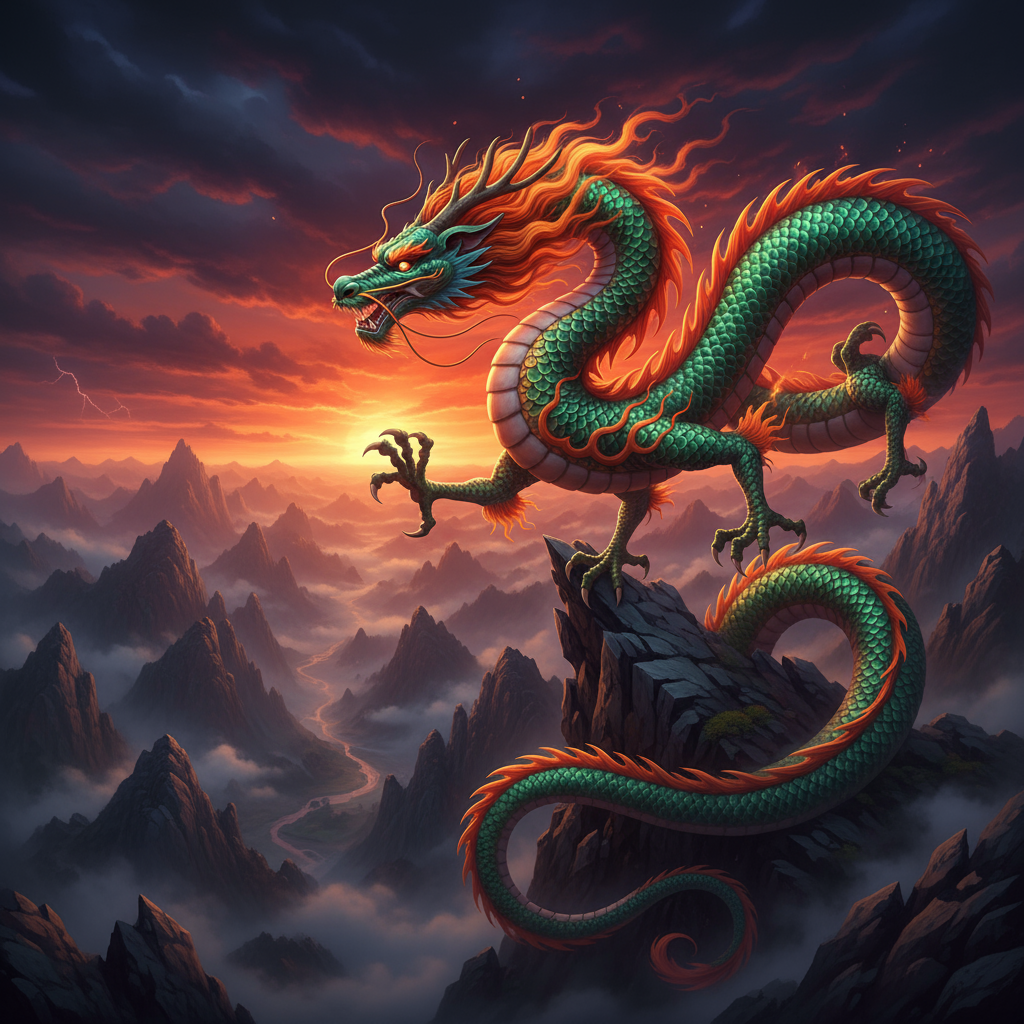
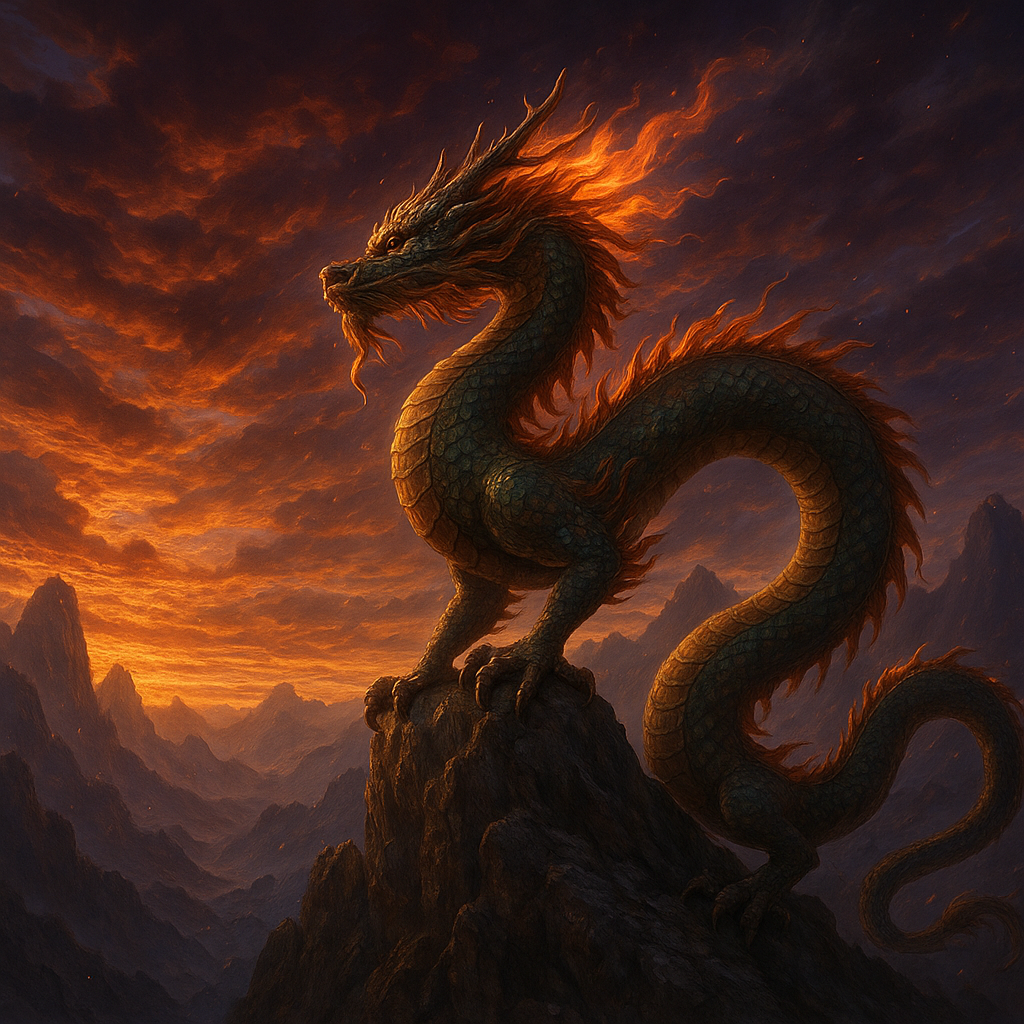
Upload reference images showing the starting and ending states, then use this prompt:
Reference Images:
Prompt:
A majestic dragon undergoes a dramatic transformation. The dragon starts in a coiled, defensive posture with scales tightly compressed and wings partially unfurled. Gradually, the transformation reveals an awakening - scales begin to shimmer with inner light, wings fully extend in a powerful display, and the creature's eyes glow with ancient wisdom. The transformation flows smoothly from the initial coiled form to a magnificent, fully awakened state. Cinematic lighting with dramatic shadows, ethereal magical effects swirling around the dragon, high fantasy art style, smooth morphing animation, 4K resolution.
Example Output Video:
Dream Videos
- Purpose: Advanced video generation from images
- Best for: Creating videos from existing images
Example: Using Vision Studio Image for Video Generation
Upload the elven queen image from Vision Studio above, then use this prompt:
Prompt:
Action: She holds her breath, brings the paint-laden brush close to the canvas, makes one rapid, precise final stroke, then steps back with a sigh of satisfaction. Ambient Sound: The clear, delicate shush-shush friction sound of the brush contacting the coarse canvas; the subtle sizzle of paint being mixed on the palette; the muffled, melancholic sound of a cello solo floating in from an open window (very soft). Character Dialogue: (Voice is soft and relieved, with a satisfied smile) "Hi, welcome to Picturethis! Where vision is created"
Example Output Video:
Prompt History (Prompt Master)
The Prompt History feature helps you manage and reuse your successful prompts across all generation tabs.
Accessing Prompt History
- Click the "Prompt History" button in the Gallery page (top right)
- The modal displays all your saved prompts with statistics
Features
Statistics Dashboard
- Total Prompts: Total number of prompts you've created
- Favorites: Number of prompts marked as favorites
- Remaining Credits: Your current credit balance
- Last 7 Days: Number of prompts created in the past week
Filter Options
- All Prompts: View all prompts regardless of type
- Image Prompts: Filter to show only image generation prompts (Vision Studio, Pixel Forge, Dream Weaver, OpenRouter)
- Video Prompts: Filter to show only video generation prompts (Vision Video, Dream Videos)
Search and Sort
- Search: Find prompts by text content
- Favorites Filter: Toggle to show only favorited prompts
- Sort Options:
- Newest First (default)
- Oldest First
- Most Expensive (highest credits used)
- Least Expensive (lowest credits used)
Using Prompt History
Viewing Prompt Details
Each prompt card shows:
- Content Type Badge: IMAGE or VIDEO
- Tab Name: Which generation tab was used (e.g., "Vision Studio", "Pixel Forge")
- Enhanced Badge: If the prompt was AI-enhanced
- Prompt Text: The full prompt with expand/collapse for long prompts
- Tags: Custom tags for organization (if added)
Actions
- Copy Prompt: Click the purple "Copy Prompt" button to copy to clipboard
- Favorite/Unfavorite: Click the star icon to mark important prompts
- Delete: Click the trash icon to remove unwanted prompts
Export Your Prompts
- Click the Export dropdown button
- Choose format:
- JSON: For backup or data analysis
- CSV: For spreadsheet viewing or sharing
Tips for Using Prompt History
- Favorite Your Best Prompts: Mark successful prompts as favorites for quick access
- Use Search: Quickly find prompts by keywords or themes
- Filter by Type: View only image or video prompts when working on specific projects
- Export Regularly: Back up your prompts to prevent loss
- Copy and Modify: Use successful prompts as templates for new creations